Installation
Installing Noctara Dots is designed to be simple.
The installer handles the boring parts of setting up a complete desktop environment so you can focus on using and customizing your setup instead of manually copying configuration files everywhere.
The installer is currently designed for Arch Linux and is focused around Wayland-based setups, especially:
- Niri
- Hyprland
- Noctalia Shell
What Does The Installer Do?
The Noctara Dots installer is more than just a config copier. It prepares your system, checks dependencies, creates backups, and deploys the complete desktop setup.
The installation process follows these steps:
System Check
      ↓
Dependency Detection
      ↓
Package Installation
      ↓
Backup Existing Configs
      ↓
Deploy Noctara Configurations
      ↓
Setup Shell Environment
      ↓
Reload Applications
      ↓
Installation Summary
Window Managers
Noctara Dots supports:
Window Managers
- Niri
- Hyprland
- Mango
The installer automatically detects which compositor you have installed and only applies the matching configuration.
For example:
- If you have Niri installed → Niri configuration will be deployed
- If you have Hyprland installed → Hyprland configuration will be deployed
- If both are installed → You can use both configurations
The installer will not force a specific workflow. It simply provides the configuration foundation.
Installing Noctara Dots
Clone the repository:
git clone https://github.com/deadduck-09/Noctara-Dots.gitEnter the directory:
cd Noctara-DotsRun the installer:
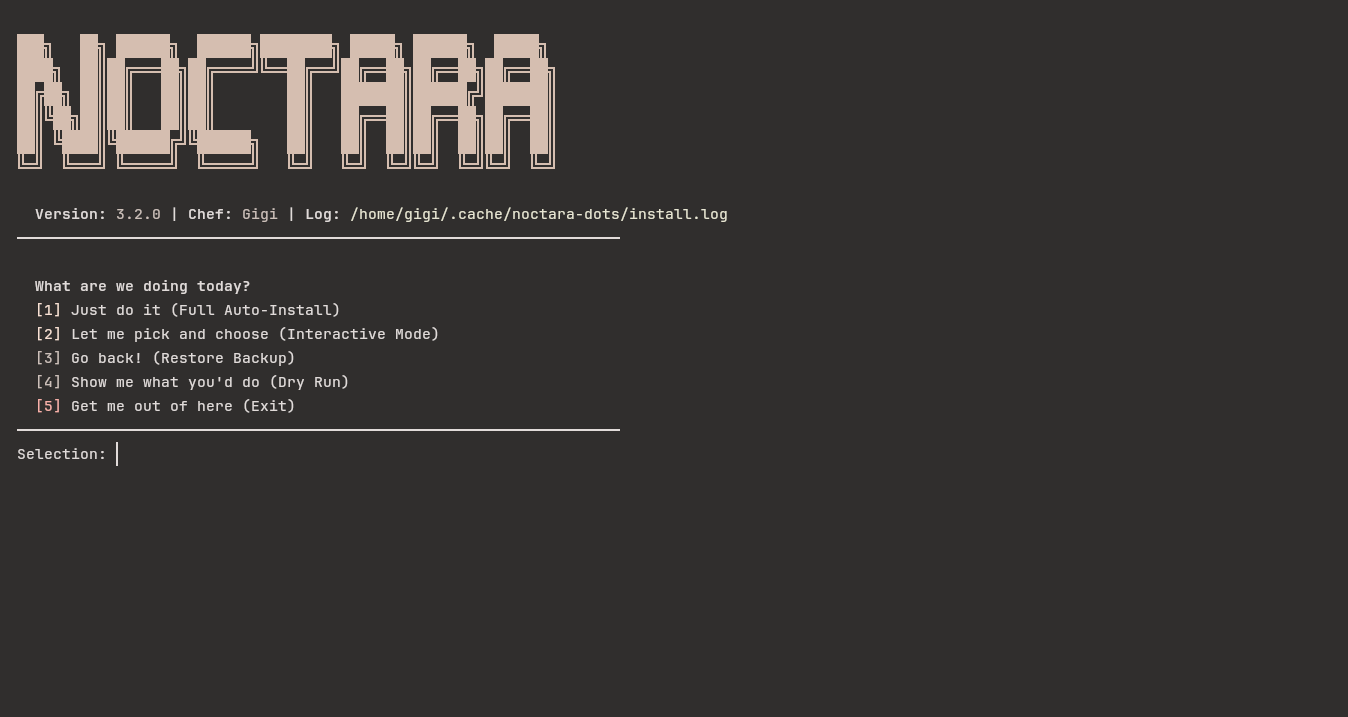
./install.shThe Noctara installer menu will appear.
Installation Modes
The installer provides multiple options depending on how much control you want.
1. Full Auto Install
[1] Just do it (Full Auto-Install)This is the easiest option.
The installer automatically:
- Checks your system
- Installs missing packages
- Installs Noctalia Shell if needed
- Creates backups
- Deploys configurations
- Sets up your selected shell
- Reloads supported applications
This option is recommended for users who simply want the complete Noctara experience.
2. Interactive Installation
[2] Let me pick and chooseThis mode gives you more control.
You can choose which configurations should be installed instead of installing everything.
Useful if you:
- Already have some applications configured
- Only want specific parts of Noctara Dots
- Want to test the setup gradually
3. Restore Backup
[3] Go back! (Restore Backup)Before changing your configuration, Noctara Dots creates a backup.
If something goes wrong or you want to return to your previous setup, the restore option can bring your old configuration back.
Backups are stored as:
~/.config-backup-date-time/Example:
~/.config-backup-2026-08-05-132000/4. Dry Run
[4] Show me what you'd doDry run mode allows you to preview what the installer would do without actually changing anything.
It will show:
- Missing packages
- Configurations that would be installed
- Actions that would happen
Nothing is modified.
This is useful if you want to understand the installer before running it.
What Gets Installed?
The installer checks and installs the required components for the Noctara setup.
Main components include:
| Component | Purpose |
|---|---|
| Noctalia Shell | Desktop shell and UI |
| Kitty | Terminal emulator |
| Waybar | Status bar |
| MPD | Music daemon |
| MPV | Media player |
| Fastfetch | System information display |
| Yazi | Terminal file manager |
| rmpc | Terminal music client |
| Neovim | Editor configuration |
The installer does not blindly reinstall everything. If something is already installed, it detects it and skips unnecessary work.
Configuration Deployment
Noctara Dots stores configurations inside the repository:
configs/
├── niri/
├── hypr/
├── kitty/
├── waybar/
├── mpd/
├── mpv/
├── fastfetch/
├── yazi/
└── rmpc/
During installation, these are copied into:
~/.config/Example:
configs/kitty
        ↓
~/.config/kitty
The same structure makes it easier to modify or remove individual components later.
Backup System
Noctara Dots never replaces your configuration without creating a backup first.
Before deployment, it checks for existing folders like:
~/.config/niri
~/.config/hypr
~/.config/kitty
If they exist, they are copied into a backup directory.
This means you can experiment safely without worrying about losing your previous setup.
Shell Setup
During installation, you can choose your terminal shell setup:
Zsh + Powerlevel10k
Includes:
- Zsh configuration
- Oh My Zsh
- Powerlevel10k theme
- Useful plugins
Fish + Starship
Includes:
- Fish shell configuration
- Starship prompt
- Custom aliases and settings
Keep Existing Shell
No changes will be made.
Installer Safety Features
The installer includes several protections:
Error Handling
If something fails, the installer stops instead of continuing with a broken setup.
Logging
Installation logs are saved here:
~/.cache/noctara-dots/install.logThis helps with troubleshooting.
Dependency Checking
The installer checks whether required applications already exist before installing anything.
Backup Before Changes
Existing configurations are preserved before modification.
After Installation
Once the installer finishes:
Log out of your current session
Select your compositor:
- Niri
- Hyprland
- Mango
Log back in
Enjoy your new desktop 🌙
Some applications may require a restart before their configuration is fully applied.
Troubleshooting
If something does not work:
Check the installer log:
cat ~/.cache/noctara-dots/install.logCommon fixes:
Missing dependencies
Run:
sudo pacman -Syuand rerun the installer.
Broken configuration
Use the restore option:
./install.shand choose:
[3] Restore Backup